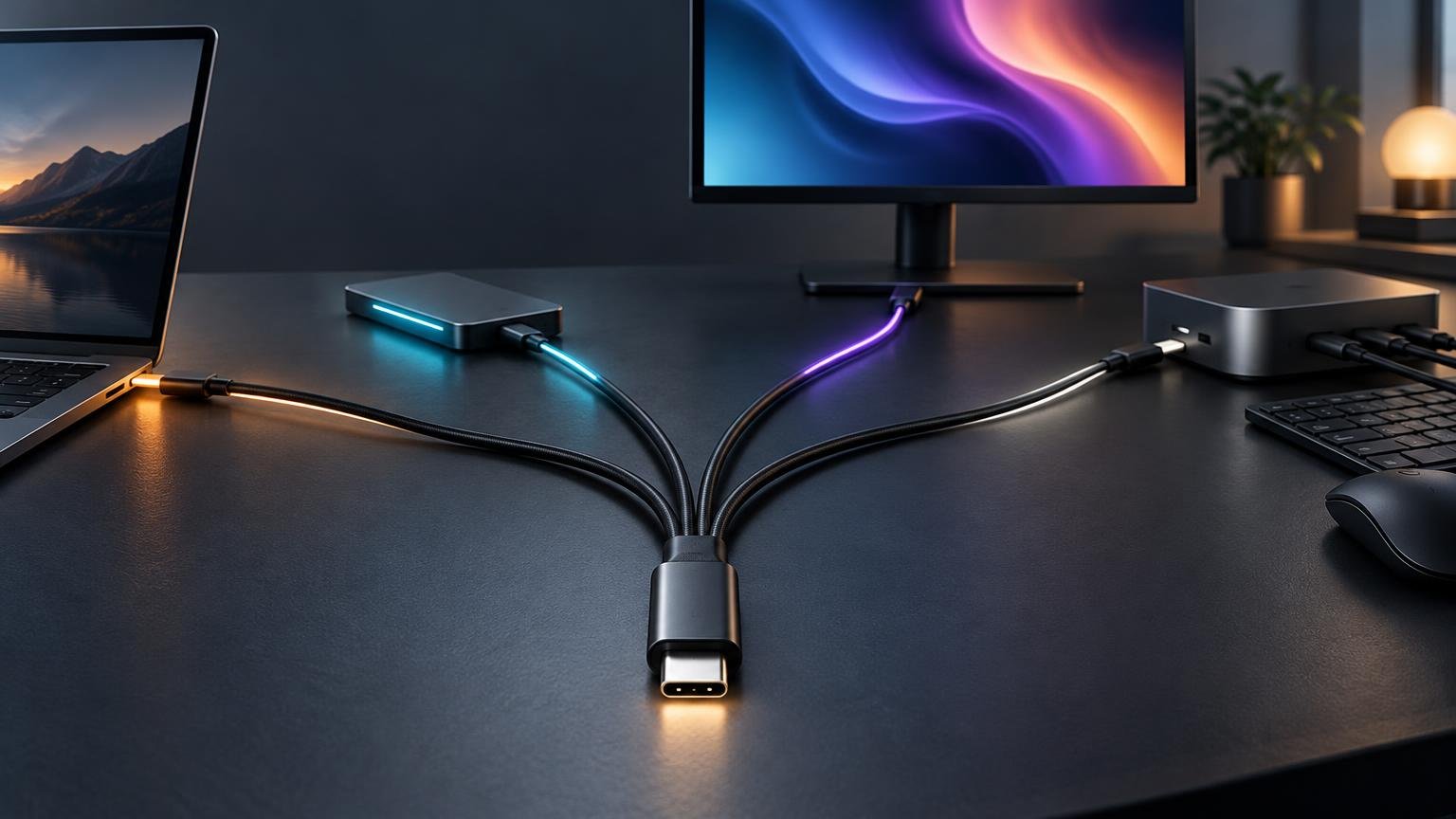
TLDR: The most important usb c cable differences are charging capacity, data speed, display support and protocol compatibility. USB-C tells you the shape of the connector, but it does not guarantee that a cable supports fast file transfers, laptop charging, monitors, USB4 or Thunderbolt. Choose a cable by matching its stated capabilities to the charger, computer and accessory you intend to connect.
Two cables can therefore have identical plugs but produce very different results. One may charge a phone while moving data at USB 2.0 speed. Another may power a laptop, drive a monitor and connect a fast external SSD. Even then, the cable cannot add capabilities that the ports or connected devices lack.
USB-C is the connector, not the performance level
USB Type-C defines a reversible connector and cable system. It is separate from standards such as USB 3.2 and USB4, which describe data capabilities. The USB Implementers Forum, or USB-IF, explicitly distinguishes these concepts: a USB 2.0 Type-C cable cannot carry USB 3.2 or USB4 signals simply because it has USB-C plugs.
Power is another layer. USB Power Delivery governs compatible power negotiation, while display output depends on supported display protocols and the devices at both ends. Thunderbolt can also use the USB-C connector while imposing its own requirements. This is why shopping for a “USB-C cable” without another specification is like shopping for a vehicle based only on the shape of its key.
The practical rule is to evaluate the entire connection: source port, cable, charger or dock, and destination device. Performance is limited by the weakest or least capable relevant component.
The USB C cable differences that matter
1. Data speed
USB-C cables can support dramatically different data rates. USB-IF’s consumer-facing labels include USB 5Gbps, USB 10Gbps, USB 20Gbps, USB 40Gbps and USB 80Gbps. A USB 2.0 cable is a lower-performance option commonly associated with a theoretical signaling rate of 480Mbps. These are maximum interface rates, not promises that every drive or computer will sustain that speed.
The consequence becomes obvious with external storage. Connect a 10Gbps-capable SSD through a USB 2.0-only cable and the cable prevents the connection from operating at 10Gbps. The drive may still appear and work, which makes the cable easy to overlook during troubleshooting. Real transfer speed is also affected by the drive, enclosure, port, workload and storage media.
Choose a cable whose stated data rate meets or exceeds the capability you plan to use. For phone charging or connecting a keyboard, USB 2.0 data may be sufficient. Large photo libraries, video projects and external SSDs benefit from a clearly specified high-speed cable. If you are deciding which storage technology fits the broader job, see why hard drives remain useful alongside SSDs.
2. Charging capacity
Charging labels describe what the cable is designed to carry, not what it will force into a device. USB-IF says certified USB-C-to-USB-C cables carry a 60W or 240W power indication. With the exception of USB 2.0 High-Speed cables, certified cables also carry an applicable data-rate marking. The USB-IF cable and connector guidance provides examples of these markings.
USB Power Delivery Revision 3.1 introduced Extended Power Range options at 28V, 36V and 48V, creating the standards framework for power delivery up to 240W in an appropriate USB-C setup. Reaching a particular power level still requires compatible equipment throughout the chain.
For example, a 240W-rated cable connected to a 30W charger does not turn that charger into a 240W source. Likewise, a laptop designed to accept 65W will not begin drawing 240W merely because the cable has the higher rating. Compatible devices negotiate a mutually supported power arrangement.
A higher-rated cable can be a sensible reusable purchase, but wattage alone does not establish data or display performance. A charging-focused cable may carry substantial power while offering only basic data capability.
3. Monitor and dock support
A USB-C connector can participate in a display connection, but the connector shape does not promise video output. The computer’s port must support the relevant display function, the cable must support the required connection, and the monitor or dock must accept it. Resolution, refresh rate and dock behavior can also depend on how the system allocates available bandwidth.
USB4 is designed to share a connection’s bandwidth among data and display protocols. The resulting behavior depends on the capabilities of the devices being connected. That makes “supports USB-C” an incomplete description for a monitor cable or dock.
Before buying, check the computer’s port documentation, the display or dock requirements, and the cable specification. A power-only or USB 2.0-focused cable may charge the laptop through a dock yet fail to provide the display and high-speed data functions expected from that same dock.
4. USB4 and Thunderbolt 4
USB4 and Thunderbolt 4 can both use USB-C connectors, but the names are not interchangeable. USB4 is a USB architecture that can share bandwidth among supported data and display protocols. Thunderbolt 4 is an Intel-certified technology with defined minimum requirements, including 40Gbps bandwidth.
| Label | What it identifies | What to verify |
|---|---|---|
| USB-C | The connector and cable system | Power, data rate, display support and protocol capability |
| USB4 | A USB data and display architecture | Supported speed and the capabilities of both connected devices |
| Thunderbolt 4 | A certified technology using USB-C | Thunderbolt support on the computer, cable and accessory |
A device having a USB-C port does not prove that it supports either USB4 or Thunderbolt. Similarly, an ordinary USB-C cable does not become a Thunderbolt cable when connected to a Thunderbolt port. For a Thunderbolt accessory, use a cable explicitly identified for the required Thunderbolt generation and check the accessory’s documentation.
5. Construction and cable length
High-speed cables may be passive or active. A passive cable carries signals without active signal-conditioning electronics, while an active design uses electronics to help meet its intended performance over a particular construction or length. USB-IF technical material distinguishes passive and active USB4 cable categories and addresses electronic identification, or e-marking, for relevant cables.
Length matters because maintaining signal integrity becomes more demanding as data rates and distance increase. Do not assume that a longer cable supports the same performance as a shorter one merely because the plugs look identical. Check the declared rate, protocol and power rating for that exact length rather than relying on another size in the same product family.
As a product-specific illustration, Apple describes its three-meter Thunderbolt 4 Pro Cable as an active cable supporting up to 40Gbps for Thunderbolt and USB4, up to 10Gbps for USB 3 data, DisplayPort output and up to 100W power delivery. Those specifications apply to that cable; they are not universal properties of three-meter USB-C cables.
How to read a USB-C cable label
Start with explicit performance markings rather than phrases such as “fast cable” or “premium USB-C.” The useful numbers tell you which jobs the cable is intended to perform.
- Power: Look for a 60W or 240W indication when charging a laptop or another higher-power device.
- Data: Match labels such as 5Gbps, 10Gbps, 20Gbps or 40Gbps to the port and accessory you intend to use.
- Protocol: For USB4 or Thunderbolt equipment, look for explicit compatibility rather than inferring it from the connector.
- Display use: Confirm that the cable is sold for the display connection and requirements in question.
- Length: Verify every capability for the exact cable length being purchased.
USB-IF says use of its certified logos is tied to compliance testing and product-listing requirements. Certification markings can therefore provide useful evidence about a product’s declared compliance. Their absence alone does not prove that a cable is unsafe, counterfeit or incapable; it simply leaves you with less standardized information to evaluate.
Which cable should you choose?
| Task | Cable capability to prioritize | Also check |
|---|---|---|
| Everyday phone charging | Enough power for the charger and phone; basic data may be sufficient | Charger output and the phone’s supported charging mode |
| Laptop charging | A 60W or 240W rating appropriate to the laptop’s needs | Charger output and laptop input requirements |
| External SSD | A stated data rate matching the drive and port, such as 10Gbps or above | Drive enclosure, computer port and workload |
| Monitor or dock | Explicit support for the required display or USB4/Thunderbolt connection | Computer port, dock, resolution and refresh-rate requirements |
| Thunderbolt accessory | A cable certified for the required Thunderbolt generation | Thunderbolt support on both connected devices |
| Long high-speed connection | A cable that states the required speed at the exact length | Whether the cable is active and any compatibility requirements |
Avoid paying for capability that cannot benefit your setup. A 40Gbps cable will not make a USB 2.0 device transfer at 40Gbps. On the other hand, buying only by price can create a cable drawer full of visually identical products that work for some tasks and mysteriously fail at others.
A practical approach is to keep a clearly labeled high-power charging cable, a known high-speed data cable, and any protocol-specific cable required by a dock or Thunderbolt device. Small tags or cable organizers can preserve the information that packaging otherwise takes with it.
Troubleshooting common USB-C cable problems
The device charges slowly
Check the charger’s output, the cable’s power rating and the device’s accepted input. Try the correct high-power port if a charger offers several outputs. Remember that replacing a low-rated cable cannot make the device exceed the charging level supported by the charger and device.
The external SSD is unexpectedly slow
Confirm the data rating printed on the cable or packaging. Then verify the port and drive enclosure specifications. If the drive works but performs far below its expected interface speed, substitute a known high-speed cable before assuming the SSD itself is defective.
The USB-C monitor shows no signal
Verify that the computer’s chosen USB-C port supports the required display function. Check the monitor input setting, dock requirements and cable specification. If the cable only documents charging or basic USB data, use one explicitly specified for the monitor, dock or required protocol.
A dock provides some functions but not others
Partial operation is an important clue. Charging may work while display output or high-speed storage does not because those functions rely on different negotiated capabilities. Test with the dock manufacturer’s specified cable or a known cable that meets every stated requirement.
Frequently asked questions
Are all USB-C cables the same?
No. They share a connector shape, but they can differ in power capacity, data speed, display support, supported protocols, length and internal construction.
Do all USB-C cables support monitors?
No. Monitor output depends on the cable and on compatible display capabilities in the computer, dock and monitor. A USB-C plug by itself is not a video guarantee.
Does a 240W cable charge every laptop at 240W?
No. The marking describes the cable’s power capability. Actual charging is limited by the compatible power levels negotiated among the charger, cable and laptop.
Do all USB-C cables support USB4 or Thunderbolt?
No. Look for an explicit USB4 or Thunderbolt designation and the required speed. The connected ports and accessory must support the same technology too.
Choose by task, not by connector
The safest way to navigate USB-C is to stop treating the plug as the specification. Decide whether the cable must charge a laptop, move large files, run a monitor, connect a dock or serve a Thunderbolt accessory. Then match its stated wattage, data rate and protocol support to every device in the chain.
If a connection underperforms, test the cable early in the troubleshooting process. An identical-looking replacement with the correct documented capabilities can be the difference between basic charging and the full performance your equipment was designed to provide.
References
- USB Type-C® and USB 2.0 Type-C™ Cable and Connector
- Cables and Connectors | USB-IF
- USB Charger (USB Power Delivery) | USB-IF
- USB4® | USB-IF
- What Is Thunderbolt™ 4 and How Is It Different from USB-C? – Intel
- Universal Serial Bus 4 (USB4™)
- Thunderbolt 4 (USB-C) Pro Cable (3 m)
- USB-IF Logo License | USB-IF